

The Translation Widget has been built as an answer to the common text localization UI/UX problems.
This jQuery Widget allows you to manage translations (create/edit/delete) of a string or several images per language in a small space.
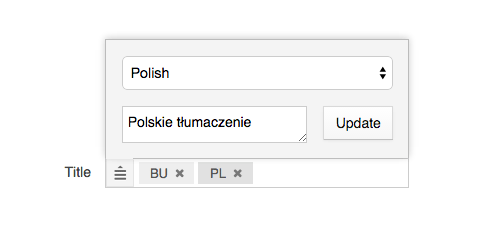
Translation Widget requires jQuery library to work.
Download with bower
bower install translation-widget --saveInclude the scripts:
<!-- jQuery  -->
<script src="https://code.jquery.com/jquery-1.11.1.min.js"></script>
<!-- Widget core script  -->
<script src="scripts/translationWidget.min.js"></script>
You will need some basic styles:
<link rel="stylesheet" href="styles/translationWidget.css">You can find these files in the dist folder.
First you have to create a basic html skeleton for each control:
<div class="control-group">
 <label class="control-label">Translation</label>
   <div class="controls">
     <input id="input1" type="text" class="m-wrap large lang-translation" readonly />
   </div>
</div>
It should be noted that the id attribute is optional and depends on how you want to initialize the plug-in. There are two methods of doing this: by class or by id. The main difference between these two methods is that when plug-ins are initiated by the class name, all the options are the same for each instance on the page. Initialization by id gives each instance more independent behaviour.
Tip: You can create different classes for different groups of inputs. This way you can have two independent groups of widgets on your page with different settings and translations.
Label content is also instance name. However, if the label contains spaces, they will be replaced by underscore character (_). For example:
Label content = Translation Widget
Instance name = Translation_Widget
Below are some basic examples of initialization to run the plugin, using class or id.
// WIDGET INITIALIZATION BY CLASS
$('.lang-translation').translationWidget();

// WIDGET INITIALIZATION BY ID
$('#input1').translationWidget();
Note that if you want to initialize the widget by input ID, you will have to do it separately for each input.
You can change the widget settings by passing an object.
// WIDGET INITIALIZATION BY CLASS
$('.lang-translation').translationWidget({
 // options list
}, {
 // custom languages list
});By default Translation Widget has list of 5 available languages: Polish, English, French, Spanish, German. You can append new language to the list or override with your own custom list.
To include new languages simply pass them during initialization as an object just after the options:
// WIDGET INITIALIZATION BY CLASS
$('.lang-translation').translationWidget({
 // list of options
}, {
 // list of additional languages
 'RU': 'Russian'
});
The code above will add new russian language to the list. If you want to use only your list, set 'useDefaultLanguages' option to false:
// WIDGET INITIALIZATION BY CLASS
$('.lang-translation').translationWidget({
 useDefaultLanguages: false,
}, {
 'RU': 'Russian'
});There are at least two ways to load the existing translations. The simplest one is to create an object which stores the translations for each plugin in the page. You can then assign this object to the parameter dataSource.
The object has its own schema which looks like this:
{
  'instanceName': {
    langCode: 'Translation',
  },
}
where instanceName is the name of widget instance* on page, langCode is the code name of language. This standard allows us to pass the translations for all widgets independently even if widgets are initialized only once by the class name.
- more info about the instance name is in Initialization section of this document
Example:
var translationsObject = new Object();

// Translations for first instance
translationsObject['Instance1'] = {
   EN: 'English translation',
   PL: 'Polskie tłumaczenie',
};

// Translations for second instance
translationsObject['Instance2'] = {
   EN: 'Another translation',
   PL: 'Inne tłumaczenie',
};

// Initialize all widgets by class reference
$('.lang-translation').translationWidget({
 dataSource: translationsObject, // pass translationObject to load translations
});In some cases, you may want to filter the translation before passing them to an instance of the plugin. Or maybe you want to take advantage of the AJAX to retrieve the translation from the server. All you need to do is assign a custom function to the dataSource parameter. The function, however, must return the same object with translations as described above.
Here is an example whose result is exactly the same as above but it uses a custom function instead of an object to dataSource:
$('.lang-translation').translationWidget({
      dataSource: function(instanceName) {
        return translationsObject;
   }
});
Note that the function takes one parameter called "instanceName". It contains the name of the instance for which there is data loading. This can be useful if you want to have more control over attaching translations to a specific instance of the plugin at the same time using the initialization by class name.
-
inputNamePrefix - string that will be added to every input name at the beginning.
-
customSelectLabel - default text for language drop-down menu. You can change it if you want to translate plugin for your own language.
-
confirmBox - list of texts and options for confirm box.
- confirmBox: yesText - Accept button label
- confirmBox: noText - Cancel button label
- confirmBox: infoMessage - Confirm box message
- confirmBox: hText - Confirm box title
- confirmBox: outerClick - Set to true if you want to close confirm box on outer click
- confirmBox: useKeys - Set to true if you want to use Escape key to close confirm box
defaultOptions = {
    dataSource: '',
    useDefaultLanguages: true,
    inputNamePrefix: '',
    customSelectLabel: 'Please Select',
    confirmBox: {
      yesText: 'Yes, delete',
      noText: 'No, go away!',
      infoMessage: 'Are you sure ?',
      hText: 'Confirm your request',
      outerClick: false,
      useKeys: true
    }
};This plugin has a number of public methods that can be used for advanced control and expand its capabilities.
To get access to the public methods scope, store the result in a variable:
var instance = $('#input1').data('translationWidget_#input1');Now you can invoke built-in methods. For example to clear all translations of input1 write something like this:
instance.clearData();More information about the available methods and variables can be found in the /docs folder.
More working examples can be found in /plugin folder. see index.html source to check some possibilities.
If you have node.js installed on your machine, run: grunt serve in terminal or console to test the plugin behaviour.
You can use file inputs to translate files and sending them to the server.
We haven't tested yet much this feature, expect some glitches! DO not hesitate to file issues if you meet any unexpected behaviour.
Translation Widget is licensed under a Creative Commons Attribution-ShareAlike 3.0 Unported License and also available under the MIT License.


